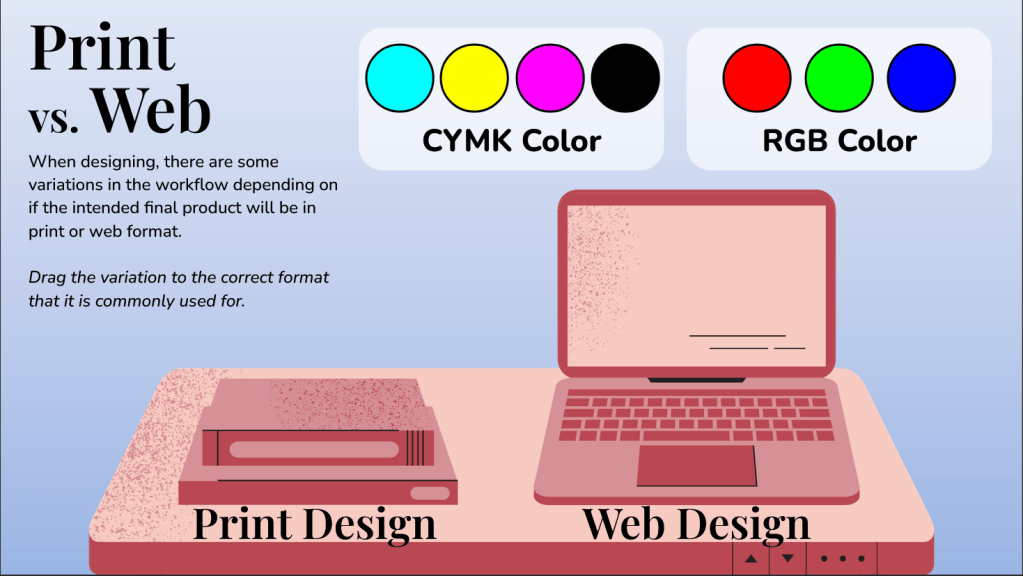
This week’s ELH Challenge was to evaluate user knowledge using Storyline 360’s drag-and-drop features.
The examples given did not tell users if their selections were correct or incorrect and they displayed all options in the one slide. I wanted to create pairings of drag items to be sorted and submitted at a time. I also wanted the drag items to return to their original placement after submission if they were placed incorrectly. Here’s how I did it.
Drag-and-Drop Feature
The drag-and-drop slides were created using the Freeform Question option in Storyline360. Using the Form View, I was able to match the drag item with the correct drop hotspot. I made the attempts unlimited, which automatically created a Try Again layer. Correct and Incorrect layers were automatically created upon creation of the slide. I wanted to users to keep trying until they got it correct, so I deleted the Incorrect layer.
Try Again
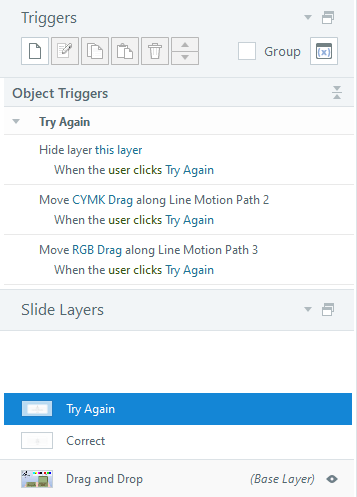
There is no straight-forward way in Storyline 360 to make the drag items go back to original starting place if they were dropped in the incorrect location. To do this, I created a motion path for each drag item that moved a length of 0px (so it stayed in its original spot) and had a duration of 0.1 sec (so it snapped back quickly). This should only happen if the user had to try again and therefor clicked ‘Try Again’. The triggers are housed in the Try Again layer and state that the drag option should move along the motion path when the user clicks ‘Try Again’.
 Kelsey Corder
Leave a comment